

Features
Everything between the key press and the send.
Capture it, mark it up, record it, explain it, send it on. Here is all of it, with the default shortcuts.
Capture
Four ways to capture, each on its own key: a region, a window, the full screen, or a whole page that scrolls further than your screen.
- Region
- Drag any rectangle. A pixel loupe helps you land on the exact pixel.
- Windows and buttons
- Hover and Snappington outlines the window, panel or button under the cursor, found through Windows UI Automation. Click to take it.
- Full screen
- The whole screen in one key press, straight into the editor.
- Scrolling capture
- Click a window or drag a region, and Snappington scrolls it for you and stitches one tall image: articles, dashboards, chat threads, documents and long lists. Sticky headers and sidebars appear once, not on every screenful. Esc keeps what you have so far.
- Presets
- Save a mode, a delay, effects and a destination together, and run them from the tray or their own hotkey.
- Delay and cursor
- Wait a few seconds for menus and hover states. Capture the pointer as its own object, so you can move or delete it later.
Mark up
More than 20 tools. Every mark is saved as data in the file, so it stays editable after you save.
- Arrows and lines
- Straight or curved, with arrow, circle, square or no heads.
- Shapes
- Rectangle, rounded rectangle, ellipse, triangle, diamond and star, outlined, filled or both.
- Callouts
- A rectangle, rounded or oval bubble with a tail you drag to the thing you mean.
- Text
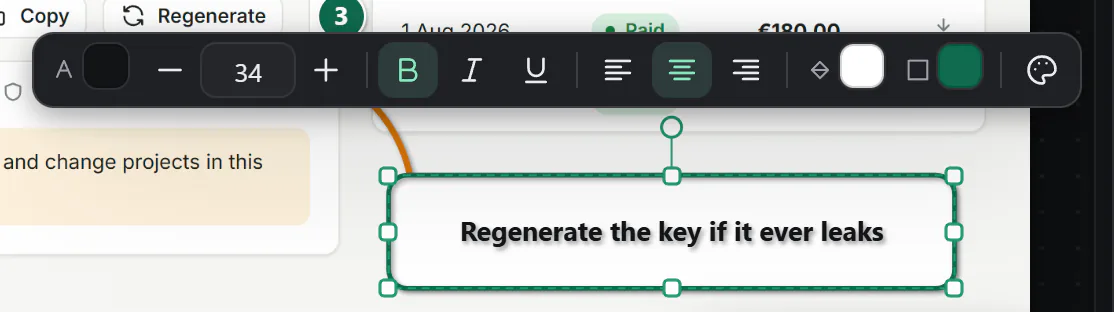
- Rich text, word by word: bold, italic, underline, colour and size, from a small toolbar that appears as you type.
- Steps
- Numbered badges for sequences, as numbers or letters.
- Highlighter and pen
- The highlighter straightens its strokes and can draw rectangles. The pen draws freehand.
- Magnify and spotlight
- A lens that enlarges part of the capture, with an optional connector. A spotlight that dims everything else, with soft edges if you like.
- Stamps
- 52 built-in stamps, plus any folder of your own images.
- Blur and redact
- Blur and pixelate are cosmetic. Redact is permanent: the pixels are replaced on save and export. Why it matters
- Styles
- Gradient fills, a hand-drawn sketch style, and presets you save and reuse.
- Crop, resize, rotate
- Stored as numbers, not baked into the pixels, so you can undo them at any time.
- Cut out and fill
- Take a band out of the middle and close the gap, or fill a selected area from its surroundings.
- Pages and combine
- Several captures in one document, or side by side in one image, with templates.
- Guides
- Smart guides line things up as you move, resize and draw.

Text and AI on your PC
These run on your computer. Nothing is uploaded to do them.
- Grab Text
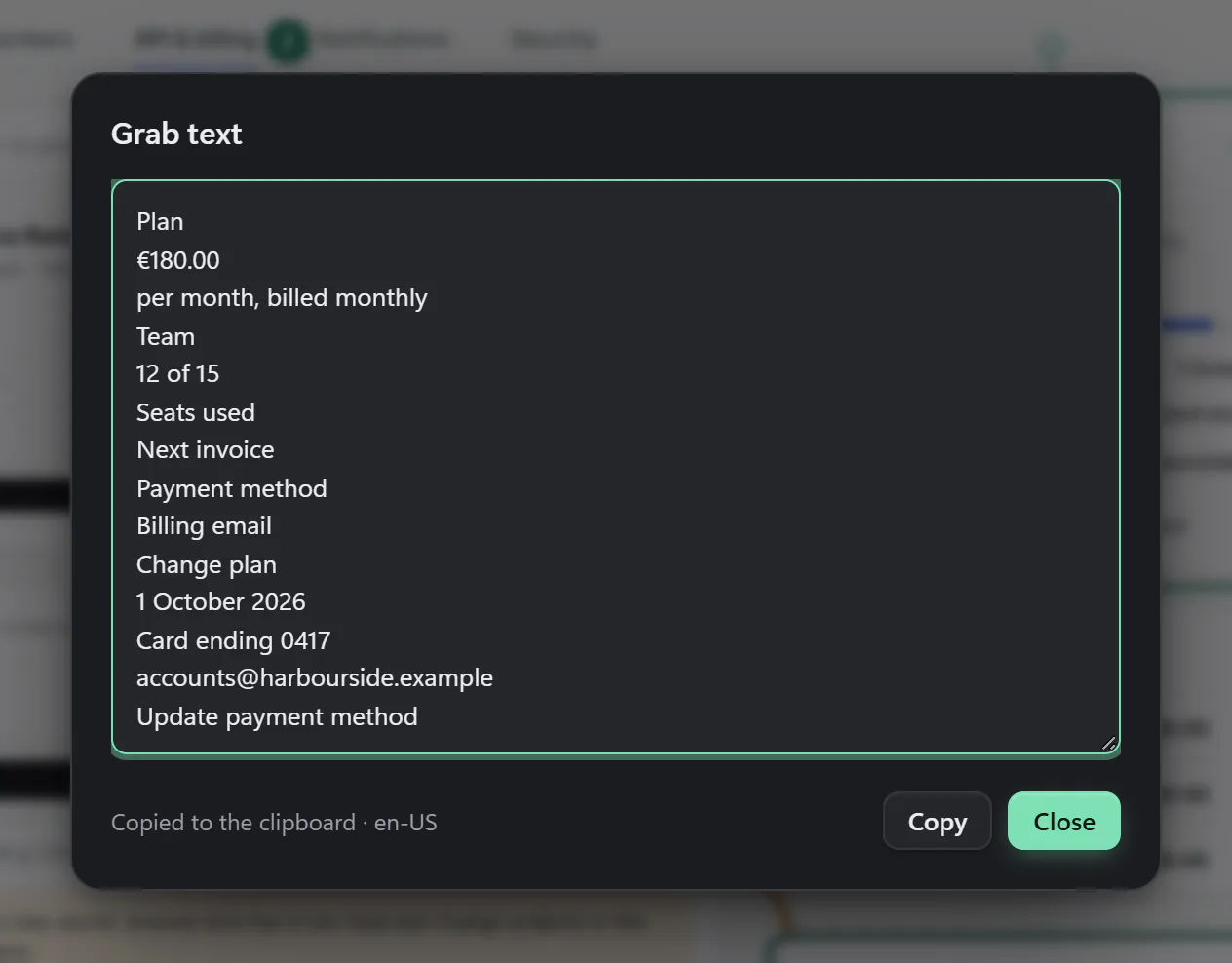
- Copy the text out of any capture, read by the text recognition built into Windows. The library searches it too.
- Smart Redact
- Finds email addresses, phone numbers, card numbers, IBANs and SSNs in a capture and puts a redaction over each one.
- Remove Background
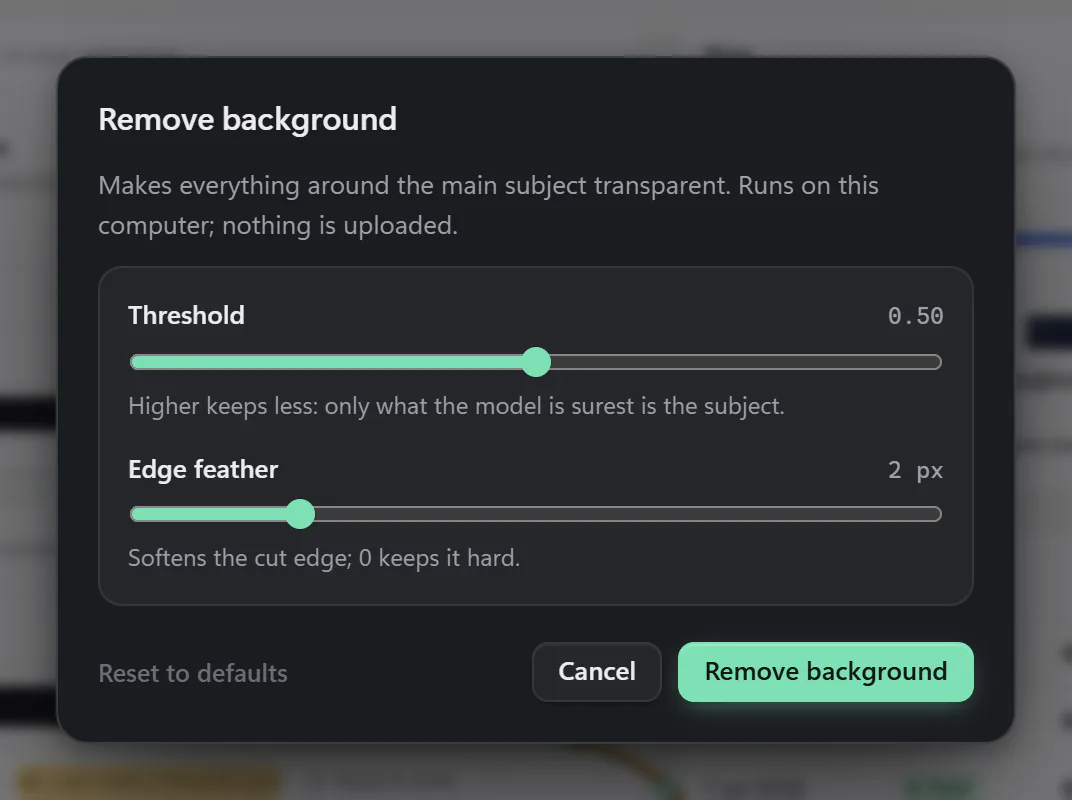
- One click cuts the subject out, on your PC, in well under a second. The model (about 5 MB) downloads once, the first time you use it.
Record
MP4 or GIF, with sound and a camera if you want them.
- Region, window or screen
- The same overlay as screenshots. Start and stop with Alt Shift R.
- System audio and microphone
- Recorded as separate tracks, so you can balance them afterwards.
- Webcam
- Recorded alongside the screen and placed as a camera bubble in the editor.
- Pause and retake
- Pause with Alt Shift P, or throw away everything since the last pause and try that bit again.
- Straight to GIF
- For tickets and docs, record a GIF directly.
- Straight to the editor
- Press Stop and the video editor shows the first frame in under half a second.

Video editor
Zooms that follow your clicks, a proper look, cuts and speed changes, and an export queue for MP4, GIF, M4A and subtitles.
Step capture
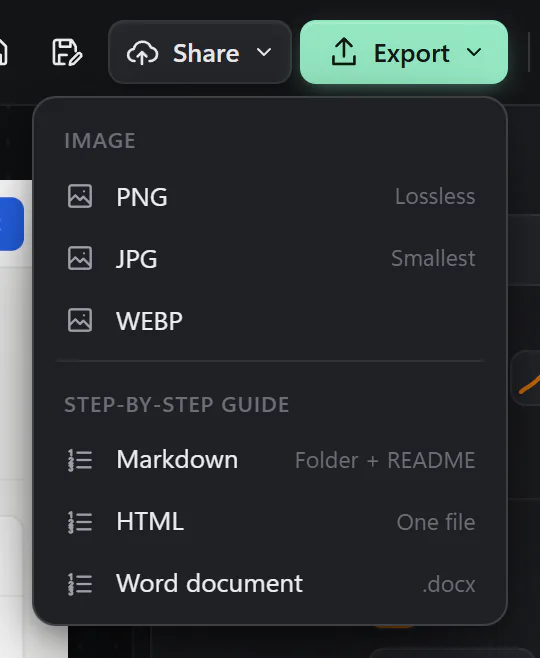
Click through a task once and get a step guide in Word, HTML, Markdown or PDF.
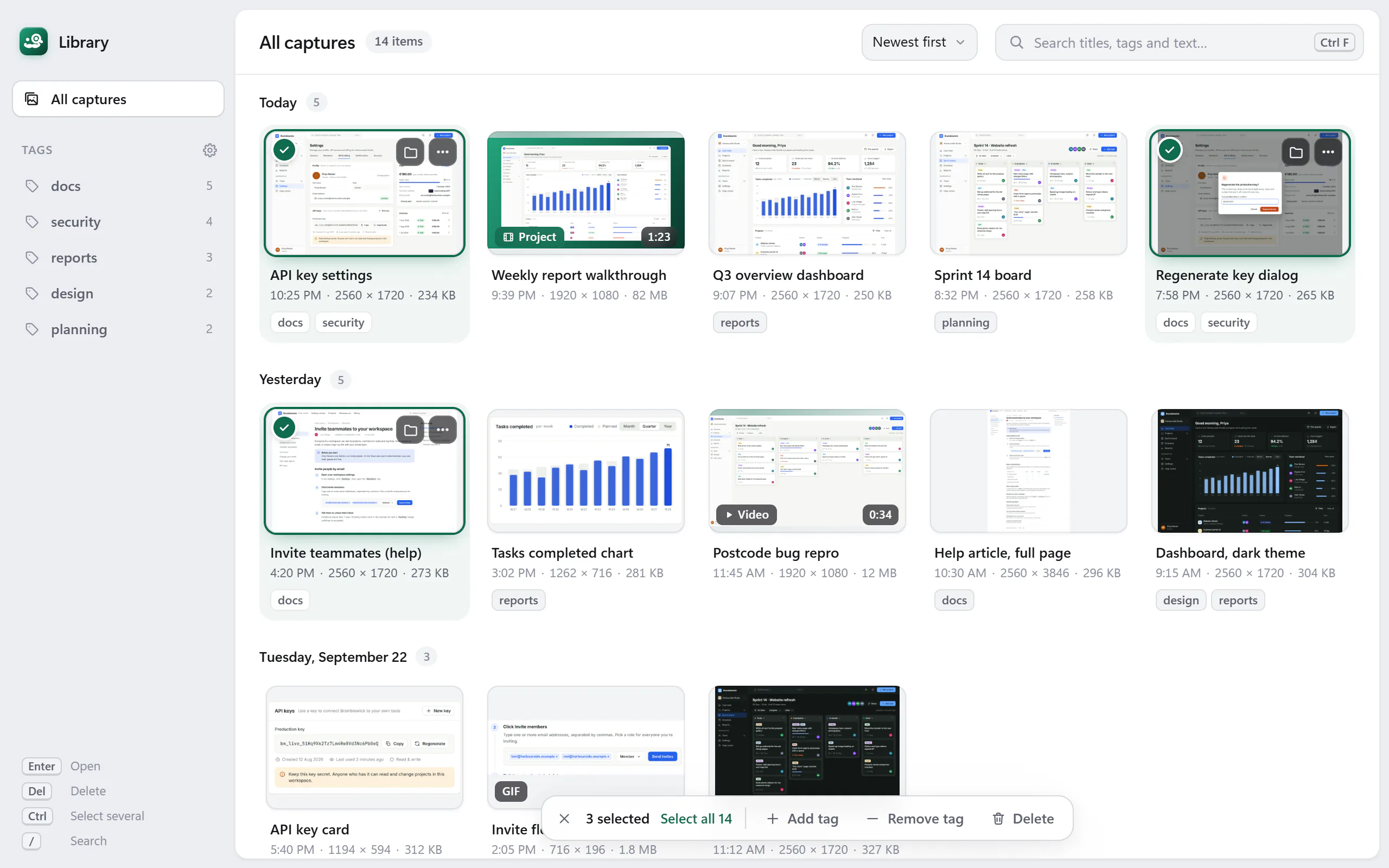
Library
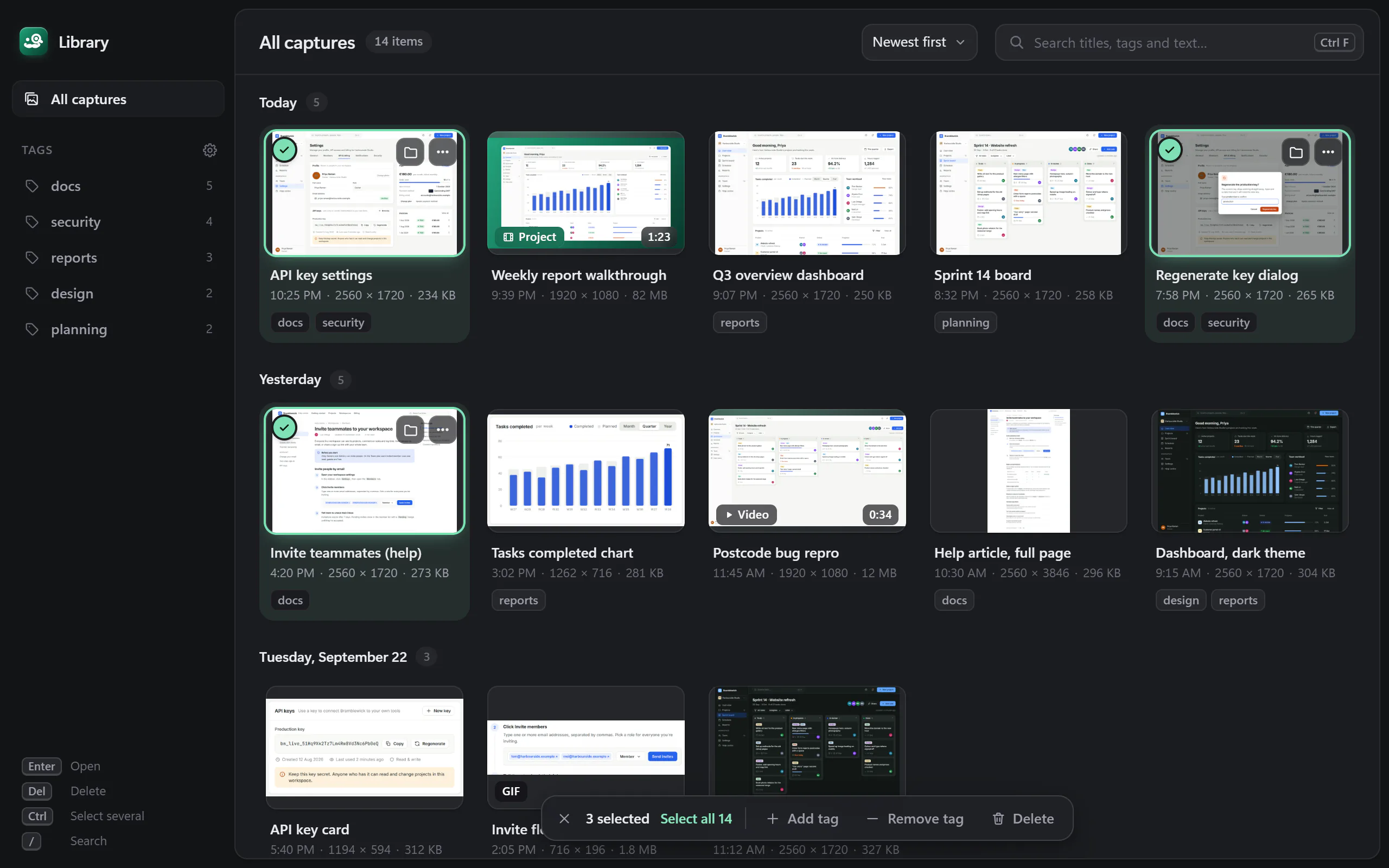
Plain folders on your disk, with tags and search on top.
- Your folder
- Captures and recordings live in
Pictures\Snappington, or any folder you choose. - Tags
- Add them, rename them, merge two into one.
- Search
- By name, by tag, and by the text inside your images.
- Batches
- Select several to tag or delete at once. Deleted files go to the Recycle Bin, not into thin air.
Share and export
Out of Snappington and into wherever it’s going. Nothing uploads by default.
- Formats
- PNG, JPEG and WebP images, or the editable
.snptfile. - Copy and drag
- Copy to the clipboard, or drag the capture straight into a chat, an email or a document.
- Destinations
- Slack, Google Drive, OneDrive, or your own HTTP server. You connect them; Snappington never uploads on its own.
- Every page
- Export one page or all of them from a multi-page document.
Files and privacy
A tool that runs on your PC and keeps your work in files you can read.
- Open format
- A
.snptfile is a ZIP with PNGs and JSON, described by a JSON Schema. Read the format - Command line
snappington validate,info,exportandthumbnailfor scripts and batch jobs.- No telemetry
- No usage data sent anywhere, and nothing uploads unless you set up a destination. Privacy
- No hidden copies
- Snappington never keeps originals or backup images inside a file, so a redaction can’t be undone by someone you send it to.
Try it on your own screen.
Windows 10 and 11. Free during the beta.