

Screenshots, done properly.
Capture a region, a window, the full screen or a whole scrolling page. Then mark it up, record it and explain it, all in one desktop app. Free during the beta, and your files stay on your disk.
Windows 10 and 11 macOS on the way
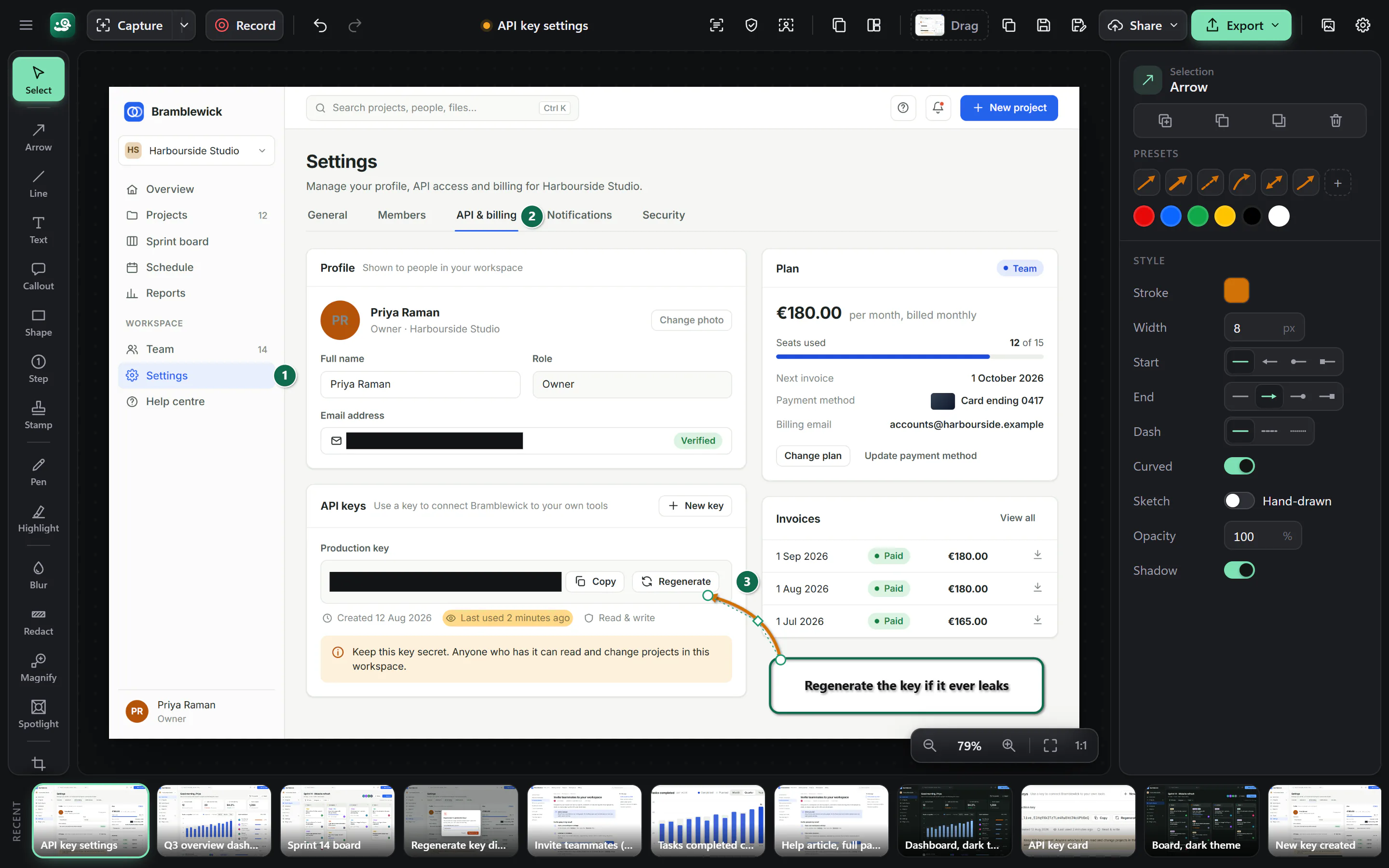
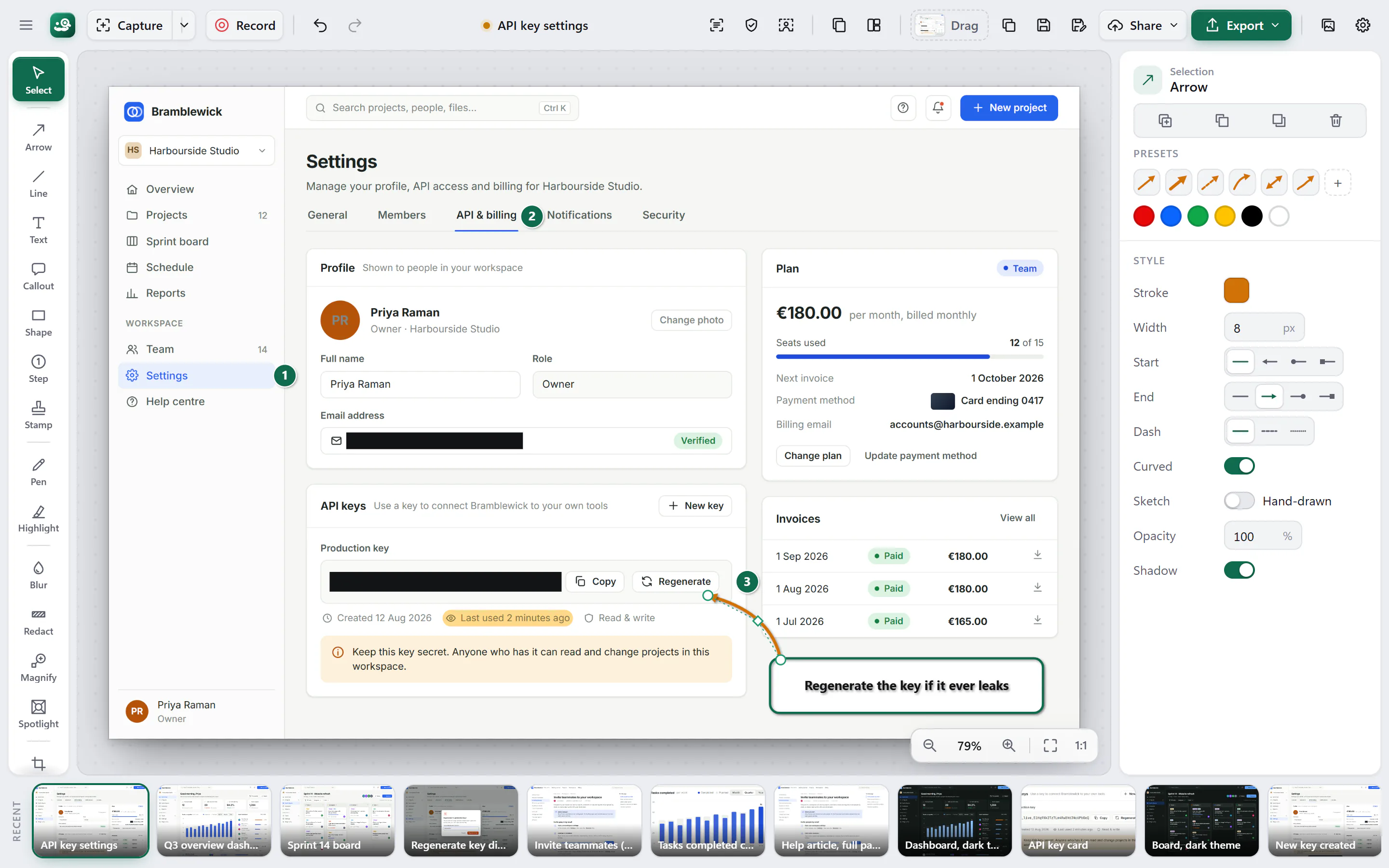
- Capture or record
- Mark up with 20+ tools
- Copy, share or export
Four ways to capture
- Drag any rectangle, down to the pixel
- Region
- Snaps to the window or button under your cursor
- Window
- Every pixel on the screen, one key press
- Full screen
- The whole page, scrolled and stitched for you
- Scrolling
Each one has its own hotkey: PrtSc, Ctrl Shift PrtSc, Ctrl PrtSc and Shift PrtSc. See scrolling capture
Four promises
What “properly” means.
-
Complete
Everything between the key press and the send.
Region, window, full-screen and scrolling capture, 20+ markup tools, recording with a real video editor, text grabbing and step guides.
-
Quick
There when you press the key.
The editor is up by the time you let go, and your capture is already saved.
-
Yours
Your files, on your disk.
No telemetry, works offline, plain folders of files in a documented format.
-
Careful
It does what it says.
Redact removes the pixels, blur is labelled cosmetic, every edit stays editable, and nothing uploads unless you set it up.
Capture
Any part of the screen. Or all of it.
Press Print Screen and drag, or let Snappington snap to whatever is under your cursor: a window, a panel, a single button. Need more? Take the full screen, or a page far longer than your screen.
- Region or window
Snaps to windows and buttons as you hover, with a pixel loupe for the fussy bits.
- Full screen
The whole screen in one key press (Ctrl PrtSc), straight into the editor.
- Scrolling capture
Long pages, chat threads and documents in one image, sticky headers handled. More below
- Presets and a delay
Save a mode, a delay, effects and a destination, and give the lot its own hotkey.
Scrolling capture
The whole page, not just the screen.
Press Shift PrtSc, pick what to capture, and Snappington scrolls it for you and stitches one tall image. No taping screenshots together.
- Long pages in one piece
Articles, dashboards, chat threads, documents and long lists, top to bottom.
- Sticky headers appear once
Headers and sidebars that follow you down the page aren’t repeated on every screenful.
- Stop when you like
Press Esc and keep everything captured so far.
- A capture like any other
Mark it up, redact it, crop it or grab the text out of it in the same editor.
Mark up
Every arrow stays an arrow.
More than 20 tools, and every mark stays editable in the saved file. Move it, restyle it or delete it next week.
Arrow
Straight or curved, with the head you want.
Shape
Rectangles, ellipses, triangles, diamonds and stars.
Callout
A bubble whose tail points where you point.
Text
Bold, italic, colour and size, word by word.
Step
Numbered badges: 1, 2, 3 or A, B, C.
Highlighter
Marker strokes that come out straight.
Pen
Freehand, for circling the thing.
Magnify
A lens that blows up the small print.
Spotlight
Dims everything except what matters.
Stamps
52 built in, or a folder of your own.
Blur
Gaussian or pixelate. For looks only.
Redact
Removes the pixels. For good.
Crop
Crop, resize and rotate, then change your mind next week.
Cut out
Take a slice out of the middle and close the gap.
Remove background
One click, on your PC, no upload.
Grab text
Copy the words out of any capture.
Also: content-aware fill, gradient fills, a hand-drawn sketch style, presets you save yourself, and multi-page documents. All markup tools
Redact means redact.
Blur is for looks. The original pixels are still in the file, and anyone with the .snpt can take the blur off.
Redact replaces the pixels when you save or export. There is nothing left underneath, in the file or in any copy. Smart Redact finds email addresses, phone numbers, card numbers, IBANs and SSNs and covers them in one go.
base.png: untouched
base.png: pixels replaced
Record
Recordings that explain themselves.
Record a region, a window or the whole screen with system audio, your microphone and your webcam. Press Stop and the video editor opens, with zooms already following your clicks.
- MP4
- GIF
- M4A
- SRT
- VTT
Step guides
Click through it once. Get the guide.
Turn on Step capture and do the task. Every click becomes a numbered step with a screenshot, ready for your notes, and the whole thing goes out as Word, HTML, Markdown or PDF.
- .docx
- .html
- .md
- Redact before you share
Each step is an ordinary page: mark it up, blur it or redact it like any capture.
- Works offline
No cloud editor and no upload. The guide is a file on your disk.
Yours
Your PC does the work.
Snappington runs on your machine and keeps its hands to itself.
- Works offline. Capture, markup, recording, the video editor and step guides all run on your PC. No connection needed.
- No telemetry. Snappington doesn’t send usage data anywhere.
- Nothing uploads by default. Only to a destination you set up: Slack, Google Drive, OneDrive or your own server.
- Plain folders. Captures are files in
Pictures\Snappington. Back them up, sync them, search them. - An open format. A
.snptfile is a ZIP of PNGs and JSON with a documented schema. Read the format
Pictures\Snappington\
├── 2026-09-25_09-41-12.snpt
├── 2026-09-25_09-44-03.snpt
└── Onboarding.snpv\       # a video project
    ├── project.json
└── media\seg-001\screen.mp4> tar -tf 2026-09-25_09-41-12.snpt
mimetype
document.json # every mark, as data
images/base.png # the capture itself
thumbnail.pngPublic beta
Free during the beta. Rather civilised.
Every feature, nothing to pay, for at least a month. Snappington will become a paid app after the beta, and beta testers will hear first.
Join the beta list to hear about updates, the end date and the launch.
FAQ
Fair questions.
Something else? Write to hello@snappington.app.
How much does it cost?
Nothing during the beta. Snappington will become a paid app after the beta; the price isn’t set yet, and beta testers will hear first. If you don’t continue, the app still opens, views and exports everything you made. The beta in plain words
How long does the beta last?
At least a month, and longer if it needs it. Each beta build shows its end date in the About box, and an update moves it on if the beta is extended. Beta questions
Does it work offline?
Yes. Capture, markup, recording, the video editor, Grab Text and step guides all run on your PC. Remove Background and captions download their models once, after you agree; sending to Slack, Google Drive or OneDrive needs a connection; and Snappington checks for updates when it can (you can turn that off).
Is there a Mac version?
Not yet. Snappington runs on Windows 10 and 11 today, and macOS is on the way. The download page has an address to write to if you’d like to hear when it’s ready.
Does Snappington upload my screenshots?
Only when you ask it to. Nothing leaves your PC until you set up a destination (Slack, Google Drive, OneDrive or your own HTTP server) and send something to it.
Is blur safe for passwords?
No. Blur changes how the picture looks, and the original pixels stay in the .snpt file. For anything secret, use Redact: it replaces the pixels when you save or export.
What is a .snpt file?
A ZIP archive with your capture as PNG and every mark as JSON, so other tools can read it too. The format is documented.

Capture the whole page, not just the screen.
Region, window, full-screen and scrolling capture, and everything that comes after. For Windows 10 and 11, free during the beta.